
A moment from the scene in play
Begin with the character, current scene and active objective. Use a small, specific detail rather than inventing a past incident to explain it.
VISINVOKE roleplaying generator
One small irritation.
Several open reactions.
A choice to let it go.

Small details for character flavour
Prepare the irritation, then leave the response to the player.
Begin with the character, current scene and active objective. Use a small, specific detail rather than inventing a past incident to explain it.
Offer several reaction directions, including restraint and letting it go. The player can change the prompt, keep a response private or ignore the moment.

Pick one harmless detail
An archer and dog stand beside a musician, muddy footprints, scattered papers and an animated courtyard discussion. The illustration brings noise, mess, interruption and status display into one scene.
Choose the kind of detail, tone and intensity that suit the character and scene. Prepare why it might grate without deciding the player’s response.
What you can prepare
Keep the active objective and optional nature of the moment visible.
Choose the character, describe the scene and name the active objective. Add only the established traits you want the moment to use.
Try manners, interruption, repetition, inefficiency, noise, mess, imprecision, status display, rule-bending or needless complexity.
Prepare a small scene detail and why it might grate. Keep the moment tied to what is happening around the character.
Choose the tone and intensity that fit your table. Keep an intensity limit and a safety stop beside the material you prepare.
Add who or what causes the irritation, a specific source if useful and who might notice. Keep private knowledge separate from the visible scene.
Prepare a possible outward cue as a roleplaying opening. The player chooses whether to use it and how the character responds.
Consider several responses, including restraint and letting it go. Leave room for the player to change the direction or keep a reaction private.
Keep the active objective in view and prepare a route back to it. The moment can be ignored when it does not suit the scene.
Choose whether the player may keep the moment as a continuity note. A lasting detail belongs in the character’s story only when the player wants it.
Review, edit, lock or reroll the material. Save a version, choose the audience, then copy, download the structured record or print it.

Prepare with restraint
A clockmaker works among ordered tools and intricate mechanisms while companions, a cat, a dog and a small dragon share the workshop. Another companion walks out toward the garden.
Add the irritation’s source, visibility and topics to avoid. Leave room for restraint, ignoring the moment and continuing the objective.
Quick and Deep preparation
Choose the details that matter to this scene.
Choose the character, describe the current scene and add established traits the moment may use. Select irritation type, tone and intensity.
Add who or what causes the irritation, who may notice and a specific source if you have one. Keep private knowledge with your preparation.
Describe scene pressure and the objective to preserve. Set topics to avoid, the intensity limit and a safety stop.
Choose whether the player may keep the moment as a continuity note. Review that possibility with the player before making it a lasting detail.

A choice to let it go
Companions share food and laughter at a riverside inn while an elf follows a route on their map. A relaxed dog rests between them, with travel plans still on the table.
Use an open reaction or ignore the irritation. Return to the active objective, and keep a continuity note only with the player’s approval.
Keep and share useful moments
Account records, versions and audience-aware sharing.
Save a pet-peeve moment to your signed-in account. Reopen, rename, duplicate, search, tag, annotate or delete it as your preparation changes.
Version history keeps the character, current scene and active objective together. Review, edit, lock or reroll material as you refine the moment.
Choose the full Dungeon Master version or a player-facing prompt. Review the content and intended audience, especially after editing.
Copy the material, download its structured record or print the result. Keep the optional reactions and easy way to ignore the moment beside the scene.
Your workspace and related products
Open your products through your account.
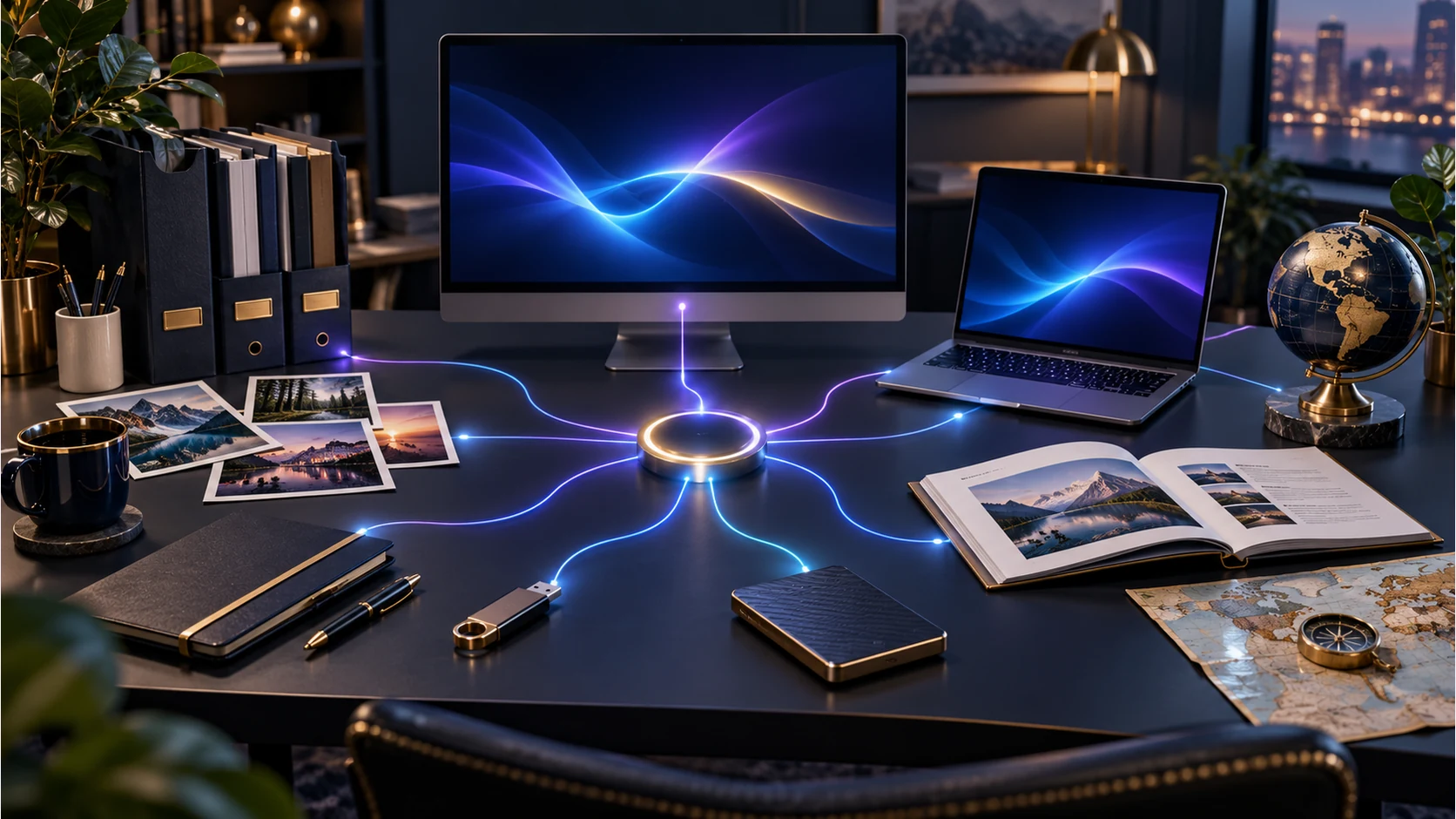
Open Personal Pet Peeve Generator in the Generators collection of your signed-in desktop workspace. Get Desktop Control Centre through your account installer page.
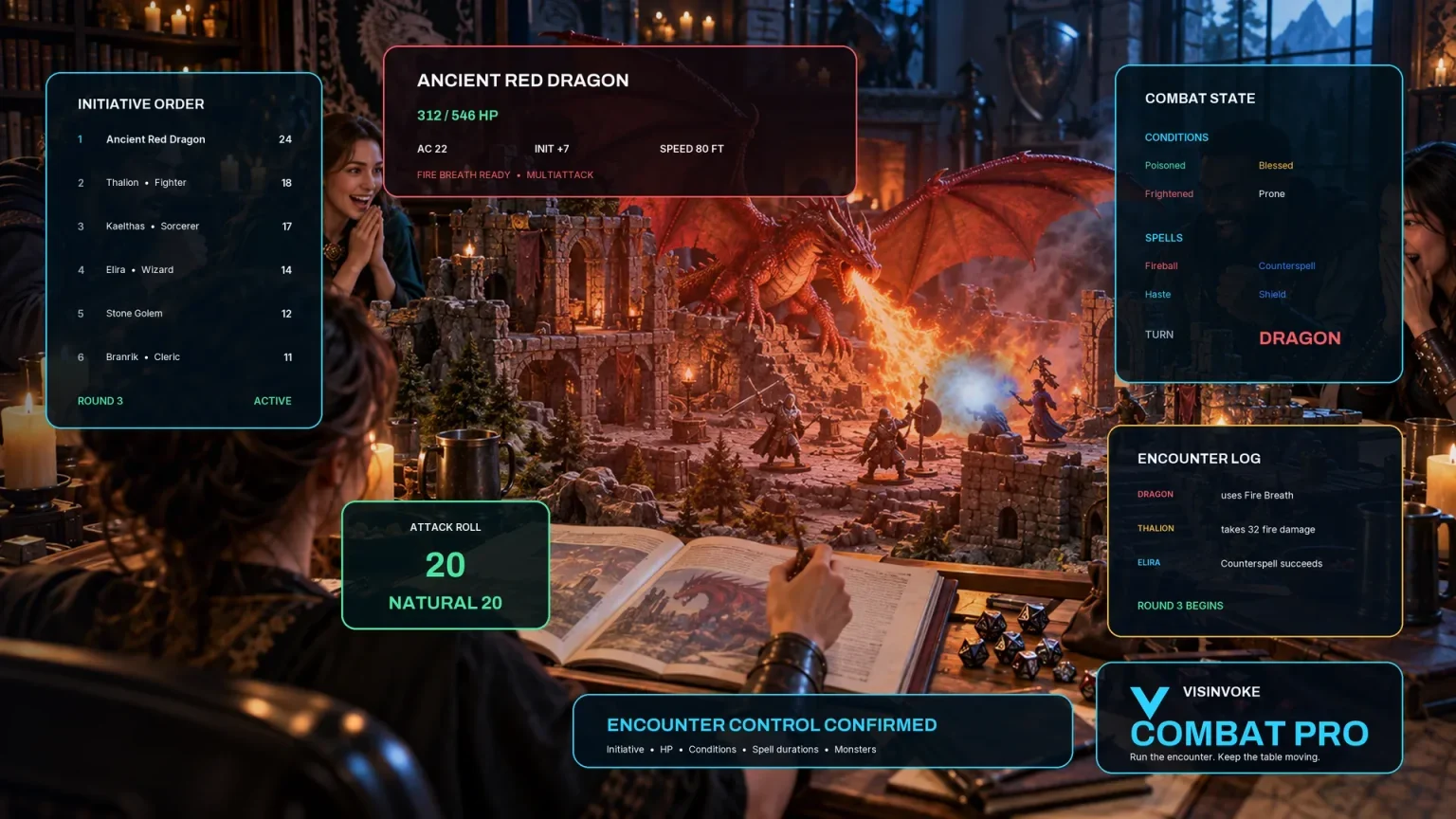
Use Combat PRO for encounter tracking in its own workspace. Keep this optional character moment with your scene preparation and the player’s choices.
Illustrations show scene subjects and companions. The player chooses every response and whether a moment becomes part of the character’s continuity.
Questions and answers
Preparation, player choice, account records and sharing.
One small, harmless irritation from the current scene, why it might grate, an optional observable cue and several open reaction directions. It includes a roleplaying opening, an easy way to ignore the moment and optional player-approved continuity.
The selected character, scene, active objective and supplied established traits. Choose irritation type, tone, intensity, source and visibility. Deep preparation adds scene pressure, private knowledge, topics to avoid and continuity preferences.
The player. They can lean into the prompt, change it, keep the reaction private, practise restraint, let it go or ignore it. Use the material as an optional scene opening and keep the active objective in view.
Save moments to your signed-in VISINVOKE account. Reopen, rename, duplicate, search, tag, annotate or delete them when needed. Version history keeps the character, scene and active objective with the record.
Choose the full Dungeon Master version or a player-facing prompt, then copy, download the structured record or print it. Review the intended audience and the content again after editing.
Create a free VISINVOKE account or sign in. Get Desktop Control Centre through your account installer page, then open Personal Pet Peeve Generator in the Generators collection. Check your account for current subscription details.
Continue in VISINVOKE
Create a free VISINVOKE account or sign in to your existing account. Get Desktop Control Centre through your account installer page.
Open Personal Pet Peeve Generator from the Generators collection. Check your account for current subscription details.